Allocate staff to tasks
Once shifts have been allocated you can allocate staff to tasks:
- Open the Plan tab.
- Select a work area or add a new work area. Each shift is held in a work area and a calendar. For example, work areas could be ‘London’, ‘Manchester’ and ‘Birmingham’.
- Select a calendar or add a new calendar. Each calendar holds team shifts made up of employees. Within ‘Manchester’, list calendars for ‘Headquarters’ and ‘Factory’.
- Click … in the calendar header:
- Select Tasks Management.
- Click in the top right to select a date to work with:
- Select a shift from the left hand menu.
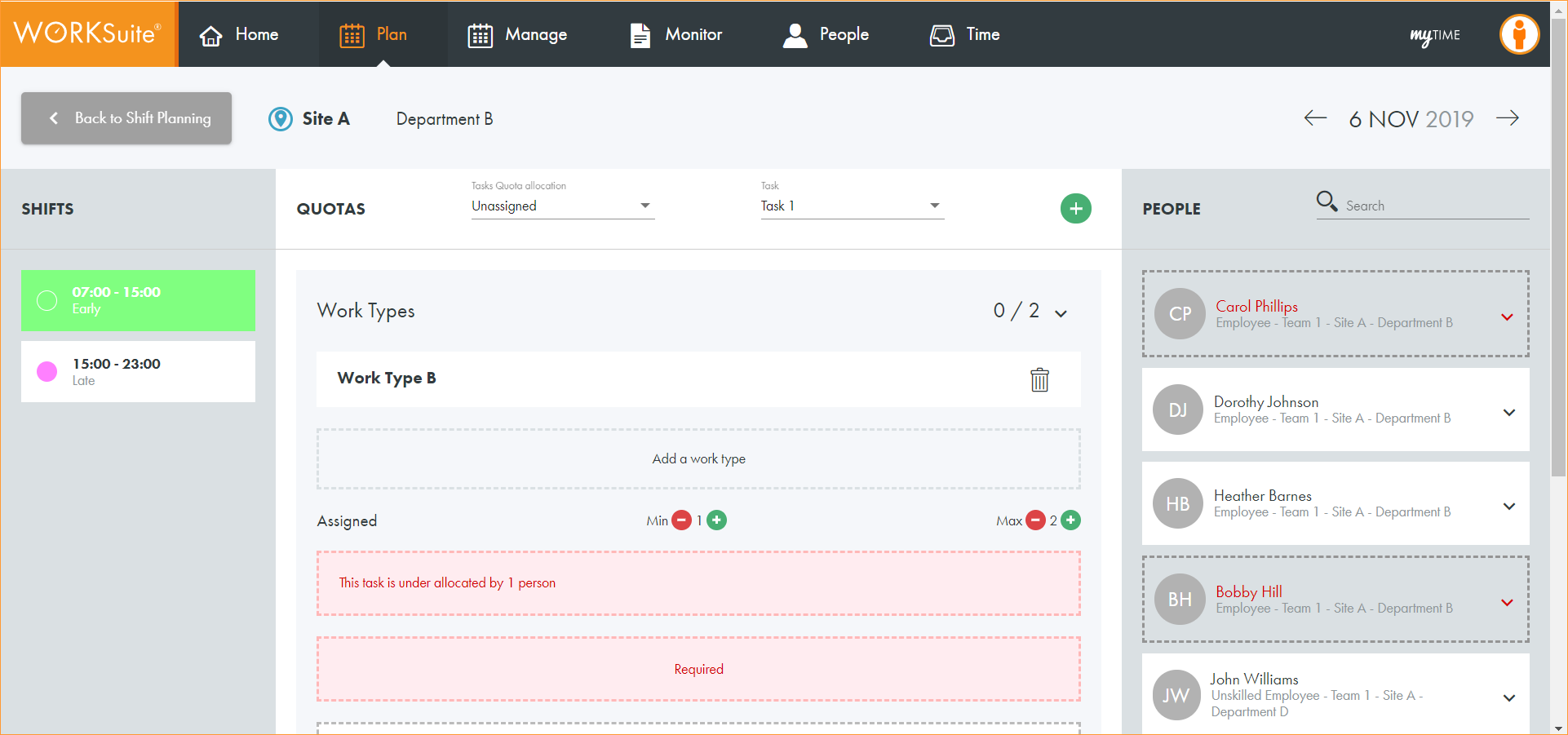
- Use the Quota filters to determine the tasks displayed on the screen. In this example we are displaying all 'Unassigned' 'Task 1'.
- Click
 in the work type that you want to assign staff to:
 - Hover over an employee listed in the right hand column and click
 to assign them to a task.
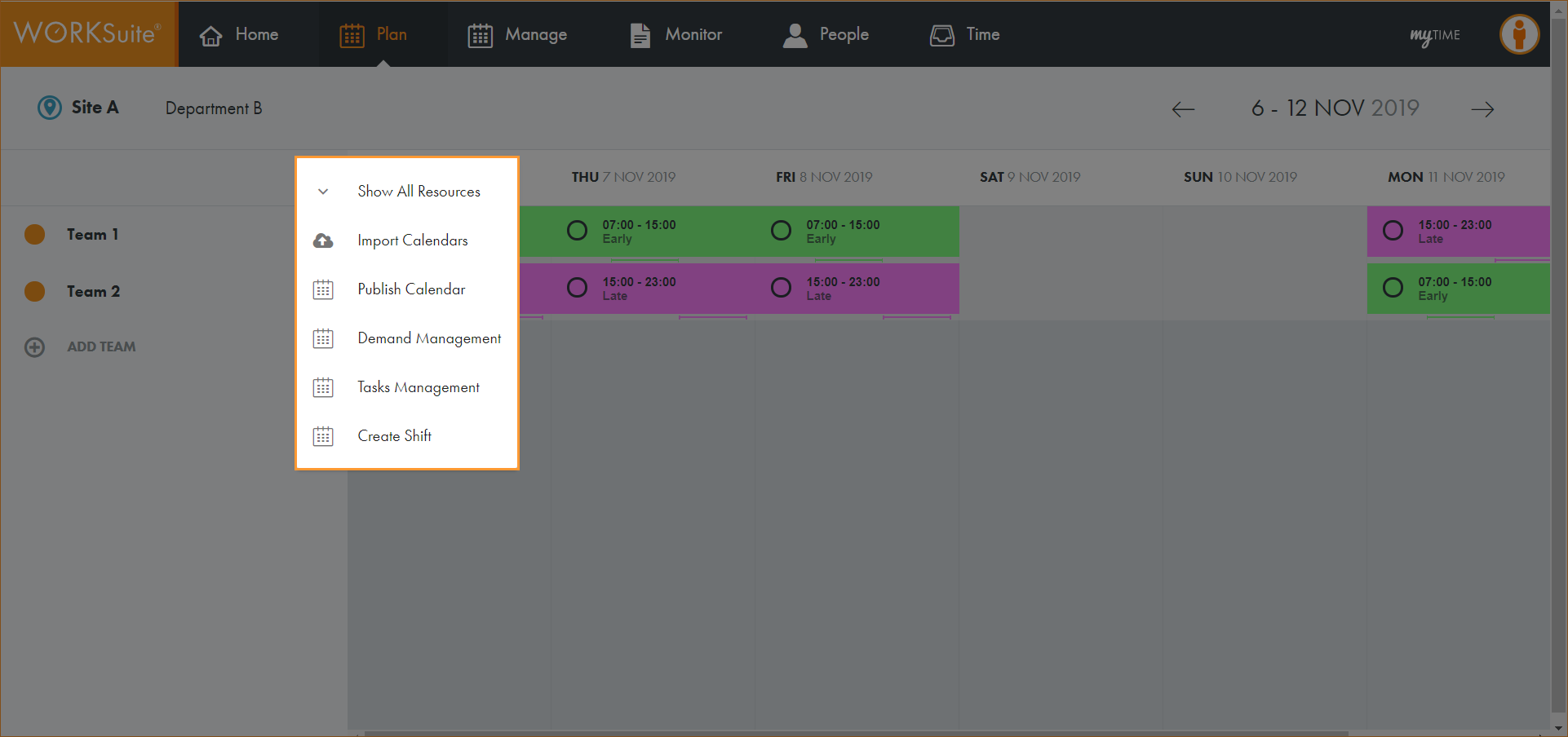
The Tasks Management screen is displayed.
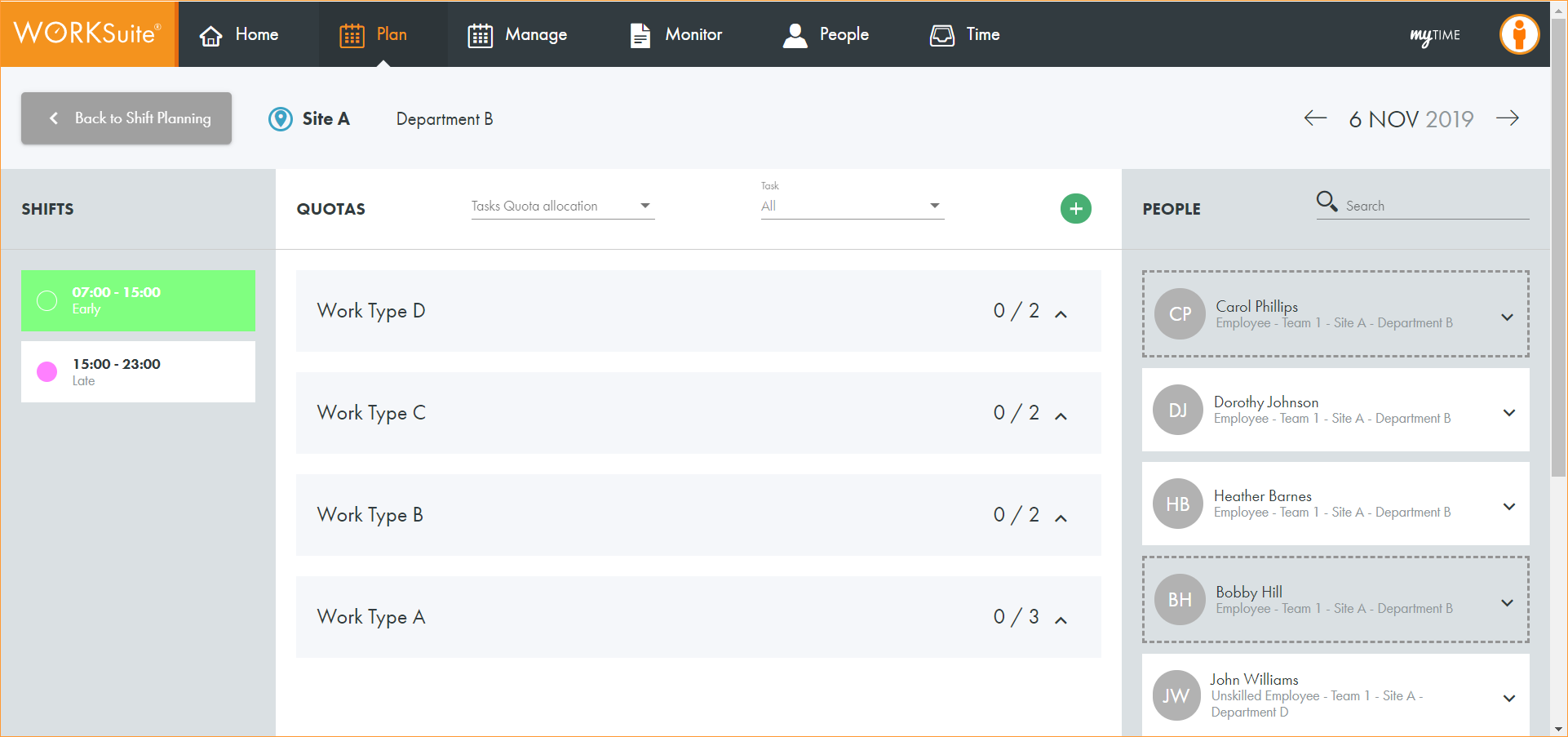
The tasks for the selected shift are displayed in the centre panel.
Note: Only the staff who comply to the task rules can be selected for a task. Any staff who are not available due to a holiday are greyed out, and any that are not eligible for the task are displayed in red.
The employee is moved from the right hand column and listed for the task:
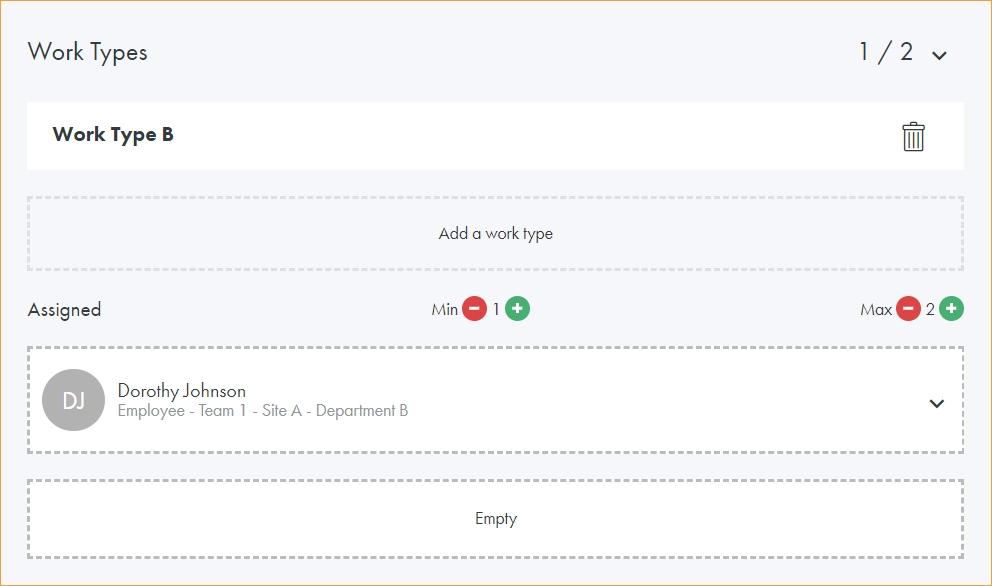
The quota allocation in the top right is adjusted. In this example 0/2 changes to 1/2. One of the two staff required has been assigned.